
The right monitor comes down to three things: how much desk distance you actually sit at, what you use the screen for, and whether your eyes and your graphics hardware can make good use of the resolution you’re buying. For most home desks, a 24 to 27 inch screen at 1080p or 1440p covers general use, while larger screens or 4K resolution only pay off if you sit close, do detailed work, or game on hardware built to push that many pixels.
It’s easy to get pulled toward the biggest, sharpest screen in the lineup, but a monitor that’s mismatched to your desk setup and your actual tasks can end up straining your neck, your eyes, or your wallet for no real benefit. Here’s how to think through it properly.
Start with size and viewing distance, not the spec sheet
Monitor shopping usually starts backwards — people look at size and resolution first, then figure out where to put the thing. Flip that order. Measure your actual desk depth and where your eyes will sit relative to the screen. As a rough guide:
- 20-24 inches suits close desk setups (under about 24 inches of viewing distance), small desks, or secondary monitors used alongside a laptop.
- 27 inches is the most common sweet spot for a primary home or work monitor at a typical 24-30 inch viewing distance.
- 32 inches and up works best if you sit farther back, use the screen for split-window multitasking, or want a monitor that can double as a modest media display.
Bigger isn’t automatically better. A 32 inch screen crammed at close range forces your eyes and neck to swivel constantly, and text can look soft if the resolution doesn’t scale up with the size. This is the same principle that applies when sizing other household electronics — the seasonal guide on buying a TV covers similar distance-to-size math, since a monitor and a television answer the same basic question: how big a screen makes sense for how far away you’ll actually be sitting.
Resolution: matching pixels to screen size
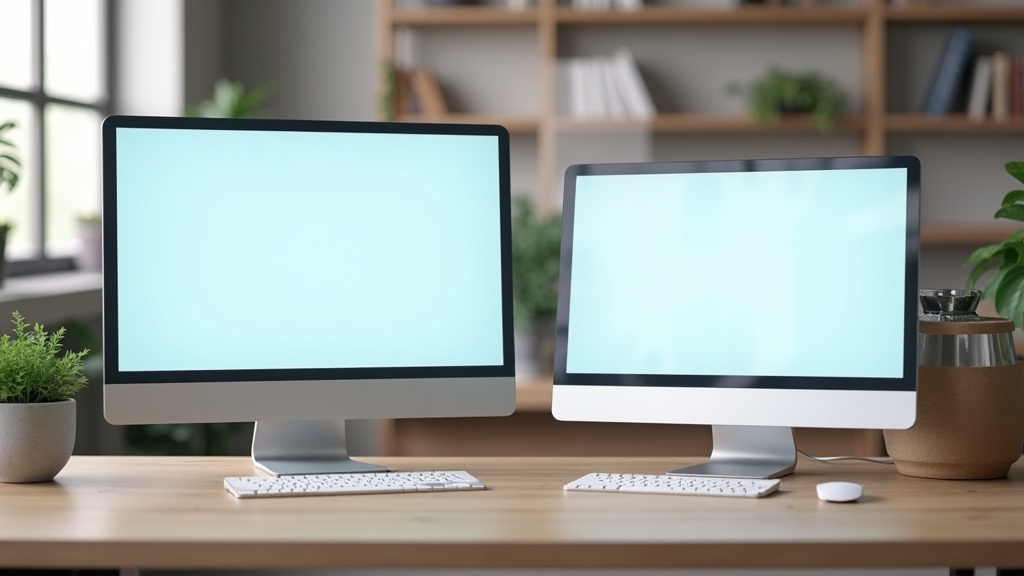
Resolution only matters relative to screen size and distance. A high resolution on a small screen viewed up close gives you sharp, small text and interface elements — great for detail work, but sometimes uncomfortably tiny without scaling adjustments. A low resolution stretched over a large screen looks soft and pixelated up close.
| Resolution | Common screen sizes | Best for |
|---|---|---|
| 1920×1080 (1080p / Full HD) | 21-24 inches | General browsing, email, budget setups, secondary monitors |
| 2560×1440 (1440p / QHD) | 24-27 inches | Everyday work, moderate photo editing, casual gaming |
| 3840×2160 (4K / UHD) | 27-32+ inches | Detailed design/photo work, large multi-window setups, media viewing |
Note that going up in resolution asks more of the rest of your system. A 4K monitor paired with an older laptop or a budget graphics card may struggle to run games or video smoothly at full resolution, and some office laptops will simply scale the image rather than display it at native sharpness. If you’re weighing a monitor upgrade alongside a computer upgrade, the buying considerations overlap — see the guide on buying a laptop for everyday use for how screen and processing needs tend to move together, and check the best month to buy a new laptop if you’re timing both purchases.
Match the monitor to what you actually do
The “best” monitor spec depends entirely on the task. Being honest about your actual use case saves money and prevents buyer’s remorse.
Everyday browsing, email, and streaming
A 24-27 inch 1080p or 1440p monitor is plenty. You won’t notice a meaningful difference jumping to 4K for this kind of use, and the extra cost is better spent elsewhere.
Office work, spreadsheets, and multitasking
Screen real estate matters more than raw sharpness here. A 27-32 inch monitor at 1440p, or a wide/ultrawide format, lets you keep multiple windows open side by side without constant alt-tabbing.
Photo, video, or design work
Color accuracy and resolution both matter. Look for a monitor with good factory color calibration claims and a higher resolution (1440p or 4K) so fine detail and gradients render cleanly. Panel type matters too — an IPS panel generally shows more consistent color across viewing angles than budget panel types.
Gaming
Refresh rate and response time often matter more than resolution for competitive or fast-paced games. A 1080p or 1440p monitor with a higher refresh rate can feel smoother in practice than a 4K screen with a standard refresh rate, especially if your graphics hardware can’t consistently push high frame rates at 4K.
Other specs worth checking before you buy
- Panel type — IPS panels tend to offer better color and viewing angles; VA panels often have better contrast; TN panels are typically the budget option with faster response but weaker color and angles.
- Refresh rate — measured in Hz, higher numbers mean smoother motion, most noticeable in gaming and fast video.
- Ports — confirm the monitor has the connection type your computer actually uses (HDMI, DisplayPort, USB-C), especially if you’re connecting a laptop that may only output over USB-C.
- Adjustability — height, tilt, and swivel adjustment on the stand make a real ergonomic difference over a full workday, often more than an extra size increment does.
- Curved vs flat — curved screens can feel more immersive at larger sizes but are a personal preference rather than a clear upgrade for most tasks.
Where to buy and when to expect deals
Monitors, like most electronics, see routine promotional cycles around major shopping holidays, back-to-school season, and end-of-year clearance as retailers make room for new model years. Watching a specific model over time — rather than buying the first listing you find — tends to reveal the real pattern of markdowns. The archive on deal timing and sales calendars is a useful reference point for when electronics categories typically dip, and the resources under comparison shopping and price tracking can help you confirm whether a listed price is actually a discount or just a normal price dressed up as one.
If you don’t need the newest model, open-box and floor-model units are worth a look, since monitors are rarely damaged by display use and the savings can be meaningful — the checklist on open-box and floor-model deals walks through what to inspect before buying one this way. Refurbished monitors from reputable sellers can also be a reasonable option; the general points in the refurbished electronics buying checklist apply here too, particularly around checking for dead pixels and confirming return windows.
Whatever route you take, read the return policy before you buy, not after you’ve unboxed it. Monitors are one of those products where a defect (a stuck pixel, uneven backlighting) sometimes only shows up once you’ve had the screen running for a few days, and a generous return window matters more than it seems like it will at checkout — the guide on how return policies should factor into buying covers what to look for in the fine print.
A simple way to decide
If you’re stuck between options, work through it in this order: measure your desk and distance, decide your primary use case, pick the resolution that matches that size and use, then look at refresh rate and panel type only if gaming or color-critical work is part of the picture. Skip specs that don’t apply to how you’ll actually use the screen — a high refresh rate is wasted on someone who only browses and reads documents, just as a giant curved display is wasted on a cramped desk.
Frequently asked questions about choosing a monitor
What monitor size is best for a home office desk?
For most home desks, 24 to 27 inches works well at a typical arm’s-length viewing distance. Go smaller if your desk is shallow or the monitor sits close to your face, and consider 32 inches only if you sit farther back or want to split the screen between multiple windows regularly.
Is 1440p or 4K better for a monitor?
It depends on screen size and use. 1440p is sharp and easier on most graphics hardware at 24-27 inches; 4K shines on larger screens (27-32 inches) or for detailed photo/video work, but needs stronger hardware to run smoothly, especially for gaming.
Do I need a 4K monitor for gaming?
Not necessarily. Many gamers get a smoother experience from a 1080p or 1440p monitor with a higher refresh rate than from 4K at a standard refresh rate, particularly if the graphics card can’t consistently hit high frame rates at 4K resolution.
What size monitor is too big for a desk?
If a screen forces you to turn your head to see the edges or sits closer than the size comfortably allows, it’s too big for that desk. As a rough rule, anything over 32 inches usually needs at least arm’s-length-plus viewing distance to stay comfortable.
Are curved monitors worth it over flat ones?
Curved monitors can feel more immersive at larger sizes and reduce peripheral distortion, but they’re a preference rather than a clear performance upgrade. For general office work or a smaller screen, a flat monitor performs just as well for most people.
Shopper Marts publishes general shopping and buying information, not financial advice, and we are not a retailer. We do not verify real-time prices, stock, or sale terms — always confirm current price, availability, and return policy directly with the seller before buying. Product categories, not specific real brands or models, are discussed unless otherwise noted, and nothing here is a guarantee of price or performance.